
Google Keep
 November 12, 2013 | By Ilfusion Team
You probably haven’t heard of it, or maybe you have and you just don’t use it.
Well take it from me – Google Keep is the single best productivity app ever created for Android. Why do I have such a strong opinion of this app? Keep reading.
Reminders
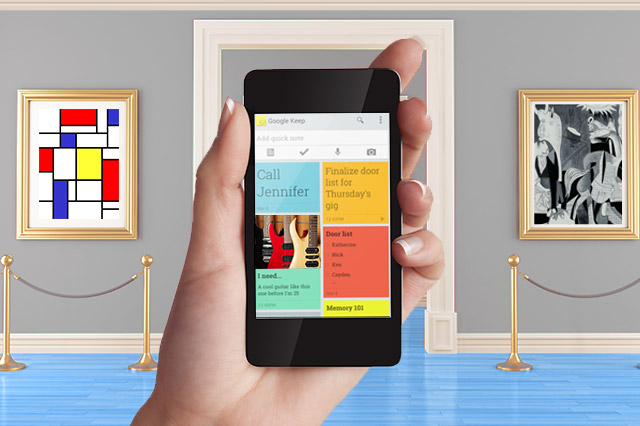
Anything you create or store in Google Keep can have reminders. There are a couple of different options for reminders which makes it very versatile.
– Photo reminders: You can snap a photo or grab one from your gallery and insert it into a note, reminder or list. This makes it a snap to refer back to. Even better, you can add multiple photos. For example, if you want to take photos of what you need to pick up at the store, you can use Google Keep’s photo reminders to organize photos of everything you need into one list.
– Timed reminders: You can set a reminder that alerts you to your note, list or photos at a certain time and date.
– Location reminders: My favorite feature of this app is that you can set reminders relative to locations. Let’s say you need to remember to get towels at Target. Just snap a picture of a towel, and type in Target in the city you want, and it will show you the picture of the towel the next time you walk in to that location. You’ll never forget anything again!
To-do Lists
As with many apps, there is a to-do list you can check off as you complete tasks. With Google Keep, you can easily swipe to reorder the list for priority changes.
Notes
Keep allows you to easily take notes that you can highlight or organize later. You can also add to-dos and photos to notes.
Voice Notes
You can, with the touch of a button, record a memo that can have a reminder, a list, or a photo attached.
In addition to these features, Keep makes customization easy by letting you colorize your items to make them distinct. To categorize further, simply hold down a note, to-do list, or other Keep feature, and it will become free to move around and reassign to a different spot. And just like in Google Docs, Keep will automatically save as you enter information so that you don’t have to worry about losing anything.
Have you used Google Keep? Stop by our Facebook page and tell us what you think about it so far.